
Set up your first budget
Add your accounts, create your envelopes, and assign your first month of money.
This walkthrough takes a new install to a fully assigned month. Twenty minutes is realistic, and most of it is typing in your account balances.
You will do four things: add the accounts your money sits in, create the envelopes you spend from, assign what you hold, and record a transaction against it.
Before you begin
- Pentos installed and open. Refer to Install Pentos.
- The current balance of every account you want to budget from. Your banking app is the fastest source.
You do not need any transaction history. Pentos starts from today’s balances and builds history as you use it.
Add your accounts
Start where your money actually is.
Open the Accounts tab and tap Add Account.
Enter a name, and choose the type: Checking, Savings, Credit Card, Cash, or Other.
Leave On Budget turned on for any account you want to budget from.
Turn it off only for money you want to watch without budgeting, such as an investment account. This choice is fixed when you create the account.
Enter the account’s current balance.
Pentos records it as a Starting Balance transaction dated today, so the account opens with the money it really holds.
Tap to save, then repeat for every account.
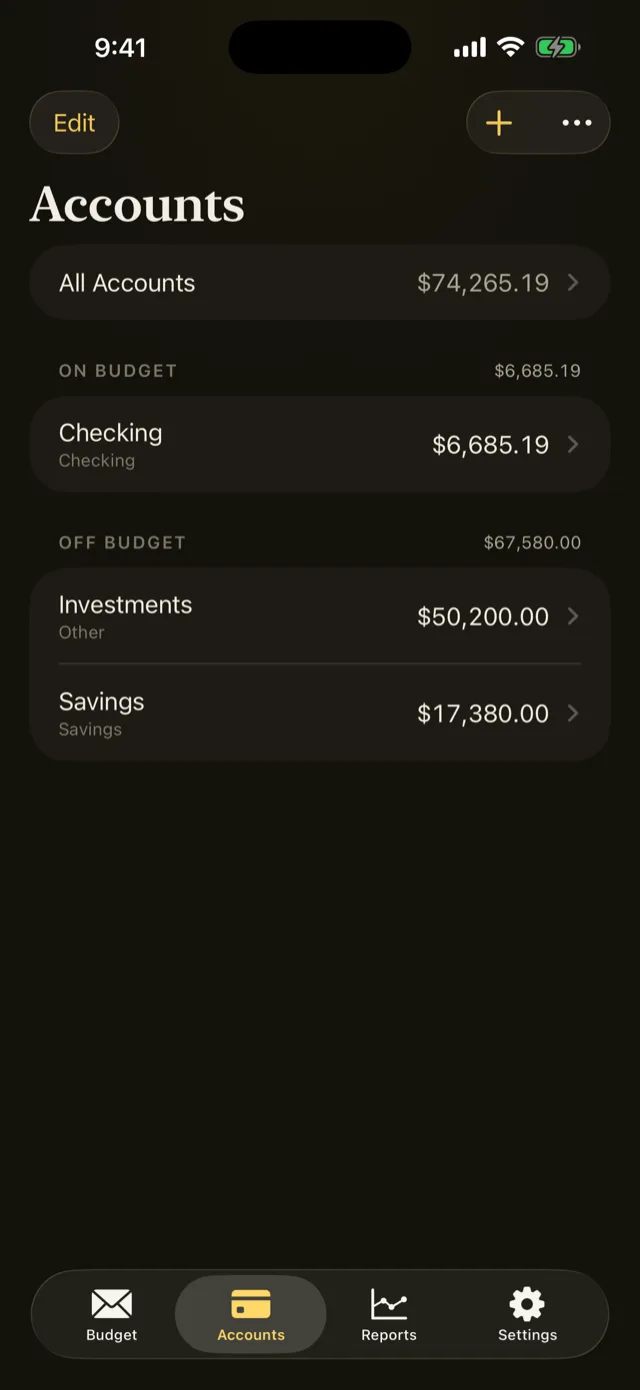
Two or three accounts is plenty to begin with. You can add more whenever you like.
Create your envelopes
Envelopes are the categories you assign money to, and they live on the Budget tab. A new budget has none, so the tab offers you two ways to begin.
Open the Budget tab.
Choose how to start:
- Add Starter Envelopes fills in a sensible starter set in one tap. Reshape it afterwards.
- Create My Own leaves the slate blank, which is the better choice if you already know your categories.
Tap Edit Categories in the toolbar to add, rename, hide, or reorder anything.
Do not overthink the list. A dozen envelopes you actually use beats forty you ignore, and the ones you are missing will announce themselves within a month.
Assign your money
The large number at the top of the Budget tab is To Budget: money you hold that has no job yet. Your work now is to hand it out.
- Tap any envelope row to open its actions.
- Tap Assign and enter an amount.
- Watch To Budget fall by what you assigned.
- Repeat until To Budget reads zero.
Start with the bills you cannot avoid, then the things you spend on regularly, then whatever is left.
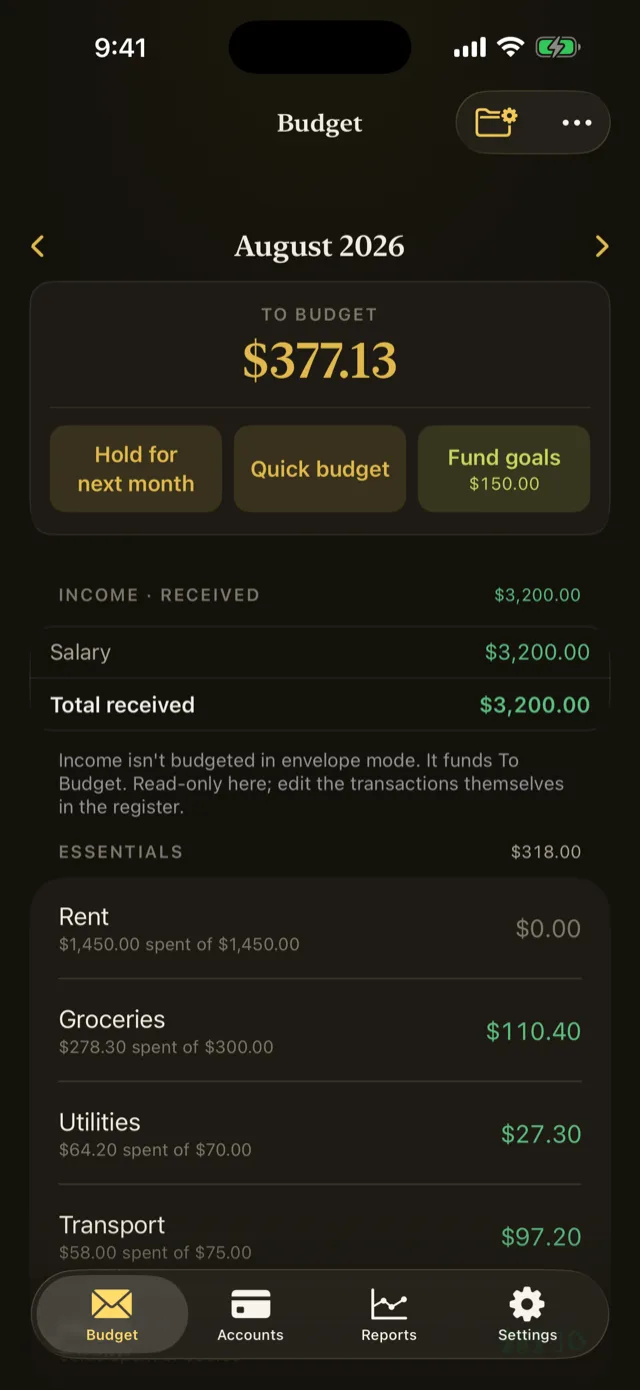
If the label changes to Overbudgeted, you have assigned more than you hold. Take money back out of an envelope until it reads zero or better.
Assign only what you have today. Money you receive later lands in To Budget when it arrives, and you assign it then. Refer to Envelope budgeting for why this matters more than it sounds.
Record a transaction
One transaction now, so you can see the whole loop close.
- Open the Accounts tab and tap an account to open its register.
- Tap Add Transaction.
- Leave the kind set to Expense, then enter the amount, the payee, and a category.
- Save it.
Go back to the Budget tab. The envelope you chose has less available than it did, and the account has less money in it. That is the whole system: one entry, both sides.
Results
You now have a budget file with real accounts, envelopes you chose, a fully assigned month, and one transaction recorded against it.
Everything after this is refinement: rules that categorise for you, schedules that post your recurring bills, and reports that tell you where it all went.
Next steps
Something wrong or missing on this page? Write to supportpentosbudget.com.